How to Auto-Translate a Discord Channel (Step by Step)
Auto-translate any Discord channel in a few minutes: the dashboard steps, the /autotranslate command, two-way channel setups and the mistakes to avoid.
On this page
- What does auto-translating a channel actually do?
- Before you start
- How to auto-translate a channel from the dashboard
- Which auto-translation options should you use?
- How to set up auto-translation with the /autotranslate command
- How to set up two-way translation between channels
- Premium extras for auto-translation
- Common mistakes (and how to fix them)
- FAQ
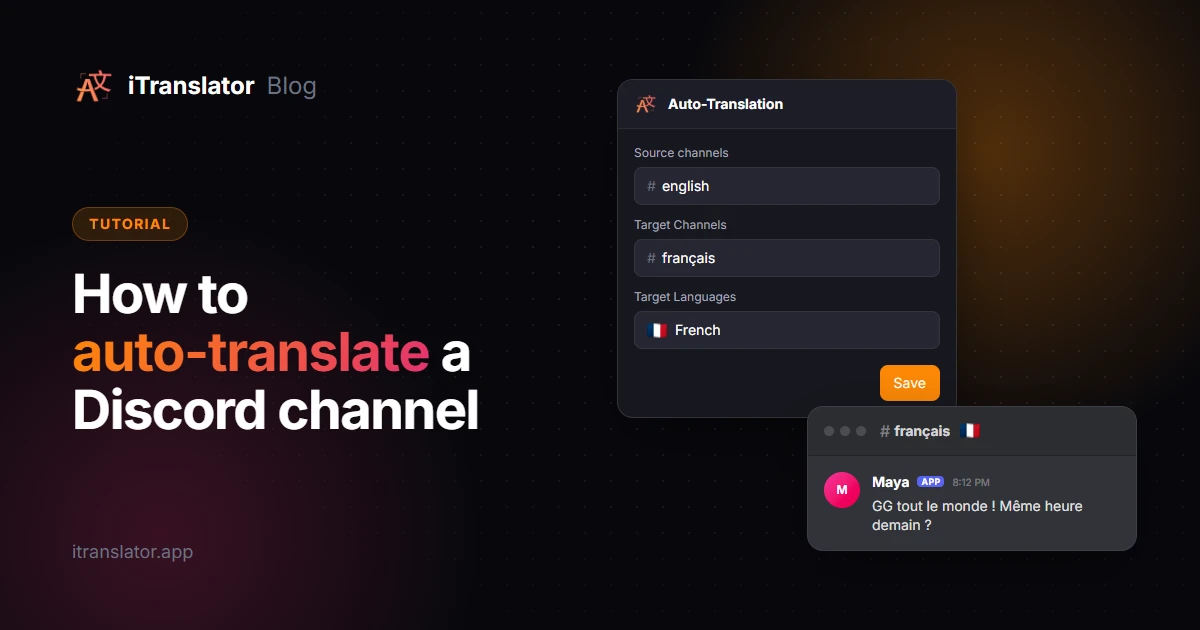
To auto-translate a Discord channel, add a translation bot such as iTranslator, open its dashboard, go to Auto-Translation and create a configuration: pick a source channel, a target channel and a target language, then save. From then on, every message posted in the source channel is translated and posted automatically. Nobody has to click, react or type a command.
As of 2026, Discord still has no built-in way to do this, so a bot is the only option. This tutorial covers the full setup, the equivalent slash command, two-way channels, and the mistakes that most often stop translations from showing up. If you only need to translate the occasional message, a right-click is enough: see every way to translate Discord messages.
What does auto-translating a channel actually do?
An auto-translation configuration is a simple rule: "take every message from this channel, translate it into this language, and post it there." iTranslator reads each new message in the source channel, translates it in real time and sends the result to the target channel. It also translates messages posted by other bots and webhooks, so announcement feeds get translated too.
You can organize it in two ways:
| Layout | How it works | Best for |
|---|---|---|
| One channel per language | #english is translated into #français, and #français into #english |
Communities where each language group chats in its own channel |
| Same channel | The translation is posted right under the original message | Small groups, announcements, one shared international chat |
With one channel per language, everyone reads and writes in their own language and still follows the whole conversation. With the same-channel layout, everything stays in one place, but the channel gets busier because every message appears at least twice. If you're still deciding how to structure your server, our guide to setting up a multilingual Discord server compares the options.
Before you start
You need three things:
- The Manage Server permission on the server you want to configure.
- iTranslator on your server. Add iTranslator to your server, choose the server, keep the preselected permissions and click Authorize.
- The right permissions in both channels. iTranslator needs View Channel, Send Messages, Manage Webhooks, Manage Messages and Embed Links in the source channel and in the target channel. The preselected permissions cover this, unless a channel's own permission settings override them.
How to auto-translate a channel from the dashboard
The dashboard is the easiest way: every option is on one screen, with tooltips that explain them.
- Open the iTranslator dashboard, log in with Discord and pick your server.
- In the sidebar, under Translations, click Auto-Translation, then Add a configuration.
- Name the configuration. Use up to 16 letters, numbers, hyphens or underscores, like
en-to-fr. You'll use this name to find and edit it later. - Choose a Message Style. Embed posts the translation in a card, Text sends it as a plain bot message, and Webhook (preselected) posts it with the original author's name and avatar, as if they had written it.
- Set the languages. Leave Source Language on Auto-Detect, or pick the language your members write in for better accuracy. Then choose the Target Languages.
- Pick the channels. Choose the Source channels (where people write) and the Target Channels (where translations go). The target can be the same channel as the source.
- Adjust the options if needed (see below), then click Save.
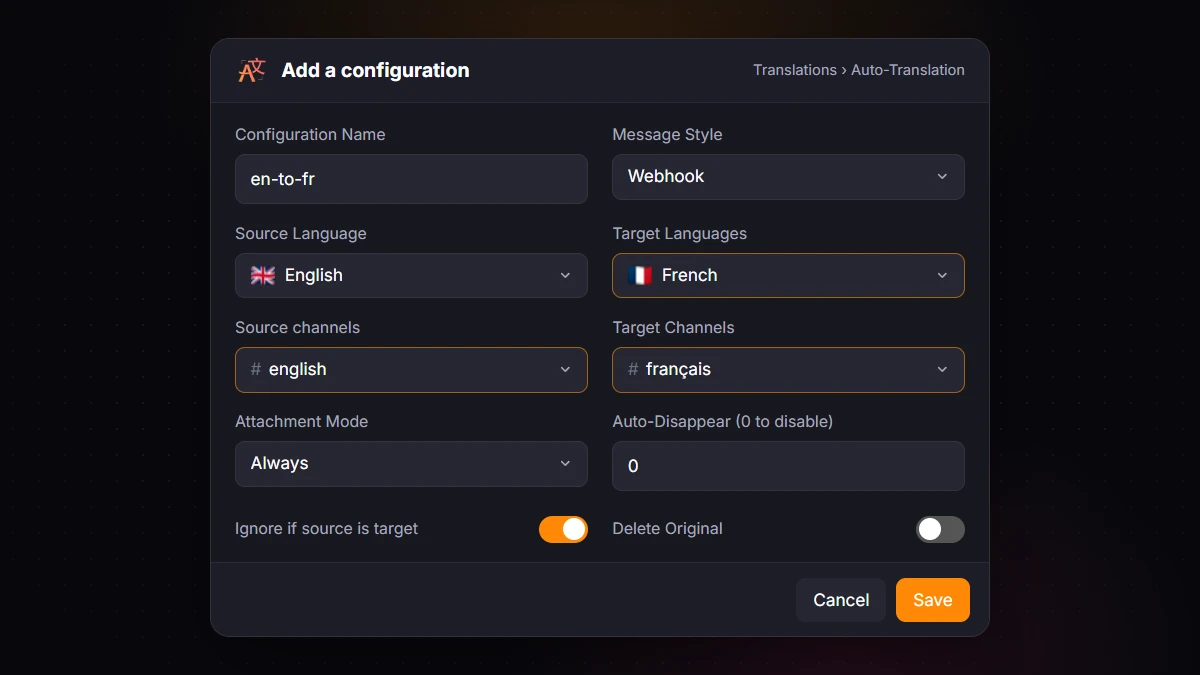
That's it. Send a test message in the source channel: the translation should appear in the target channel within moments.
Which auto-translation options should you use?
The defaults work for most servers, but these options are worth knowing:
- Attachment Mode: whether images and videos are copied with the translation. Always copies them, Only with Text copies them only when the message also contains text, and Never skips them. Pick Never if you don't want every meme posted twice.
- Auto-Disappear: deletes each translation after a number of seconds, up to 300 (0 turns it off). Handy in shared channels, where a translation is only needed for a moment. It requires the Manage Messages permission.
- Ignore if source is target: skips messages that are already in the target language, so English messages don't get "translated" into English.
- Ignore if source is not input: when you set a source language, skips messages written in any other language.
- Delete Original: removes the original message once it's translated, so only the translation remains. Combined with the Webhook style, it's a way to keep a channel in a single language.
The form also has Disable Mentions and Use Custom Message Format, two Premium options covered below. With the /autotranslate config ignore-emojis command, you can also ignore messages that contain only emojis.
How to set up auto-translation with the /autotranslate command
Prefer to stay in Discord? The /autotranslate create command does the same thing:
/autotranslate create name: en-to-fr source-channel: #english target-channel: #français target-language: French source-language: English
name: the configuration's unique name.source-channel: the channel to read messages from.target-channel: where translations are posted (it can be the same channel).target-language: the language to translate into.source-language(optional): the language your members write in. It improves accuracy, but messages in that channel should then be in that language.
Run /autotranslate list to see all your configurations. Each option also has its own subcommand, such as /autotranslate config style or /autotranslate config auto-disappear.
How to set up two-way translation between channels
Here's the part that trips people up: a configuration translates in one direction only. With #english → #français, French speakers can read the English chat, but nothing they write in #français reaches #english.
For a real two-way conversation, create two configurations:
| Name | Source channel | Target channel | Target language |
|---|---|---|---|
en-to-fr |
#english | #français | French |
fr-to-en |
#français | #english | English |
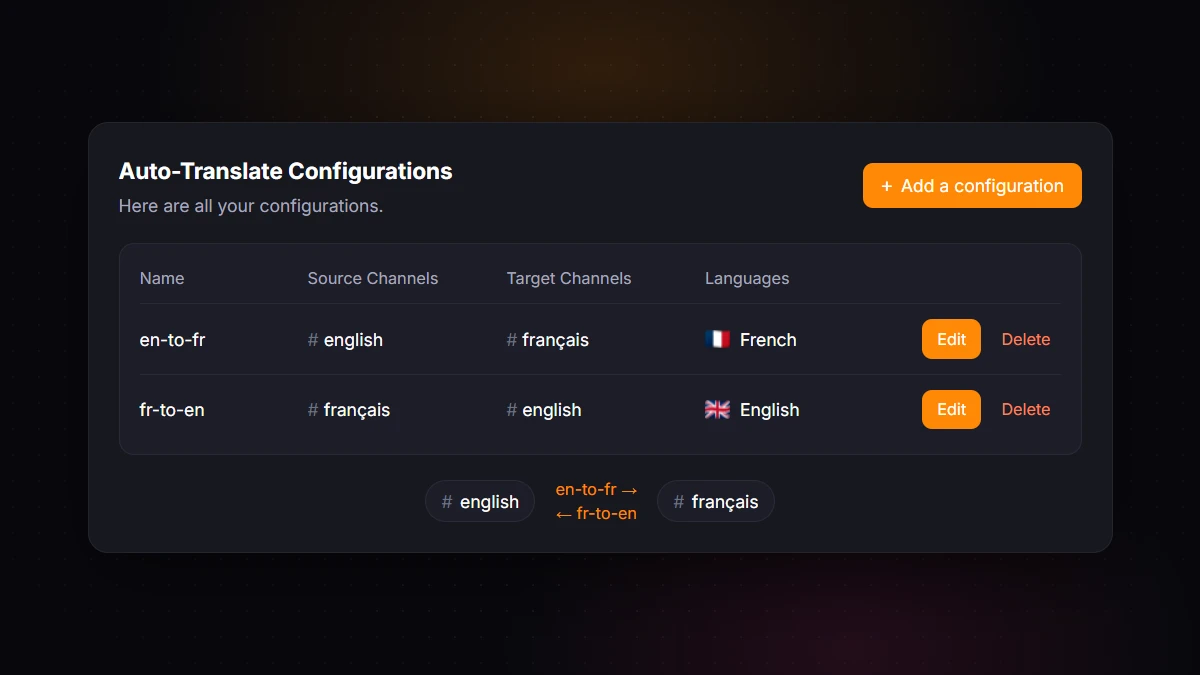
With the Webhook style on both, each channel reads like a normal conversation: every message shows its author's name and avatar, in the reader's language.
The same logic scales to more languages: with three language channels, each one needs to reach the other two. On the free plan, where a configuration has one target channel and one target language, that's six configurations. The free plan allows up to 30, so there's plenty of room.
The same-channel layout
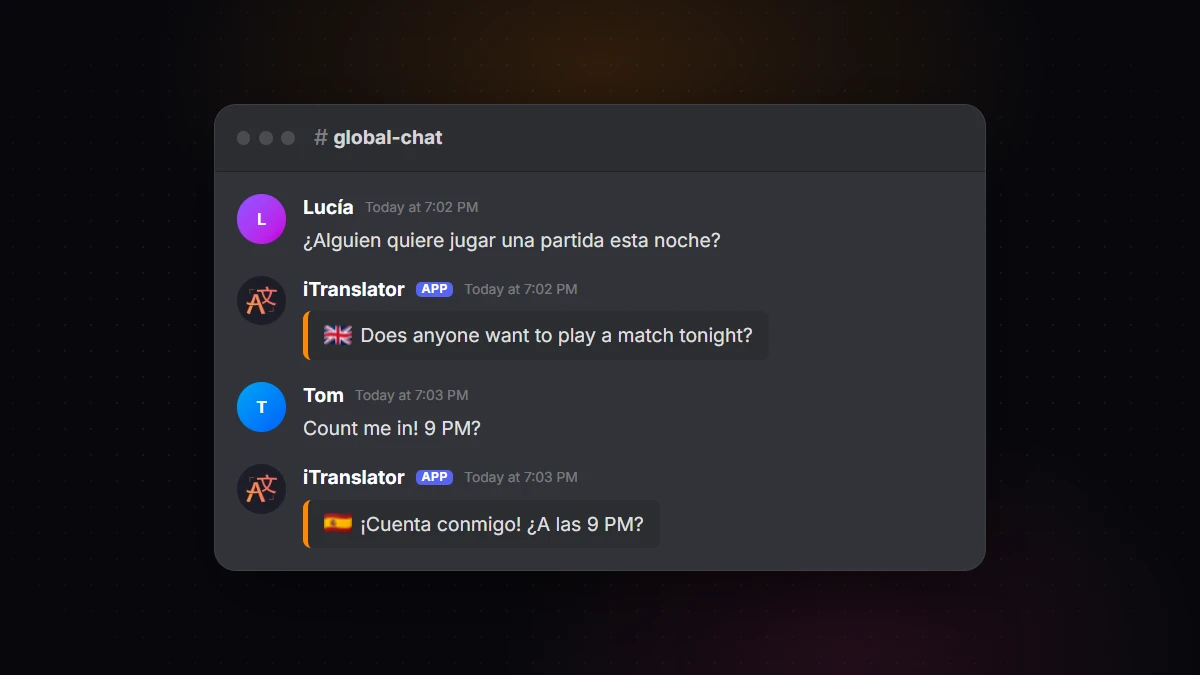
For a single international channel, set the same channel as source and target. If your members speak English and Spanish, create one configuration that targets English and one that targets Spanish, and turn on Ignore if source is target in both. Spanish messages then get an English translation, English messages get a Spanish one, and nothing is translated into its own language.
Premium extras for auto-translation
The free plan covers most setups. Premium adds a few things that matter on bigger servers:
- Categories as source or target. Select a whole category as the source, and every text channel inside it is translated, without adding them one by one. With exactly one target category, channels are paired by position: the first channel of the source category goes to the first channel of the target category, the second to the second, and so on. Mirror
#general-enand#support-enwith#general-frand#support-fr, and one configuration handles all of them. - Several channels and languages per configuration. For example, translate
#generalinto French, Spanish and German right under each message, with a single configuration. - Custom message format. Design your own layout with variables like
{translation},{user_name},{language_flag}or{original_message_link}. The format must include{translation}. - Disable Mentions, so a translated mention doesn't ping people a second time.
- Clean webhook names. Premium also removes the "(Generated by iTranslator)" label from webhook names.
- A more accurate translation engine and all 109+ languages, for €9.99/month per server (ex VAT).
Common mistakes (and how to fix them)
When translations don't show up, check these first:
- Missing permissions in one channel. iTranslator needs View Channel, Send Messages, Manage Webhooks, Manage Messages and Embed Links in both the source and the target channel. Private channels and channels with custom permission overrides are the usual suspects.
- Only one direction configured. Two channels that talk to each other need two configurations.
- A source language that doesn't match. If you set English as the source but people write in Spanish, translations will be off. Leave it on Auto-Detect for mixed channels.
no-translatein the target channel's topic. A channel with this keyword in its topic doesn't receive auto-translations, including in a same-channel setup. Remove it if you want translations posted there.- The free character limit. If the bot says Character limit exceeded, the server has used its 10,000 free characters. Any member can reset them for free every 12 hours: run
/checkvote, vote for iTranslator on top.gg, then run/checkvoteagain. Premium removes the limit. - Old messages and threads. Auto-translation handles new messages, posted after you save the configuration, so test it with a fresh message. To translate a thread, select the thread itself as the source (or its category, on Premium).
FAQ
Can Discord auto-translate a channel without a bot?
No. As of 2026, Discord has no built-in translation for servers or DMs. You need a bot like iTranslator to translate a channel automatically.
Can I auto-translate one channel into several languages?
Yes. On the free plan, create one configuration per target language, up to 30 configurations. On Premium, a single configuration can translate into several languages and post to several channels.
Can translations look like the original author sent them?
Yes. Use the Webhook message style, the default: translations are posted with the author's name and avatar, so the translated channel reads like a normal conversation.
Is auto-translation free?
Yes. The free plan includes up to 30 auto-translation configurations and 10,000 characters per server, which you can reset for free every 12 hours by voting with /checkvote.
How do I stop auto-translating a channel?
Delete the configuration from the dashboard's Auto-Translation page (or with /autotranslate delete). If the configuration has several source channels (Premium), you can instead edit it and remove just that one.
Break the language barrier on your server
iTranslator translates every message automatically in 109+ languages, so everyone can chat in their own language. Set up in 2 minutes.
Add to DiscordFree to start · No credit card required