How to Translate Discord Messages with Flag Reactions
React with a country flag and get an instant translation. Here's how to set up flag reaction translation on Discord, choose the options and keep chats clean.
On this page
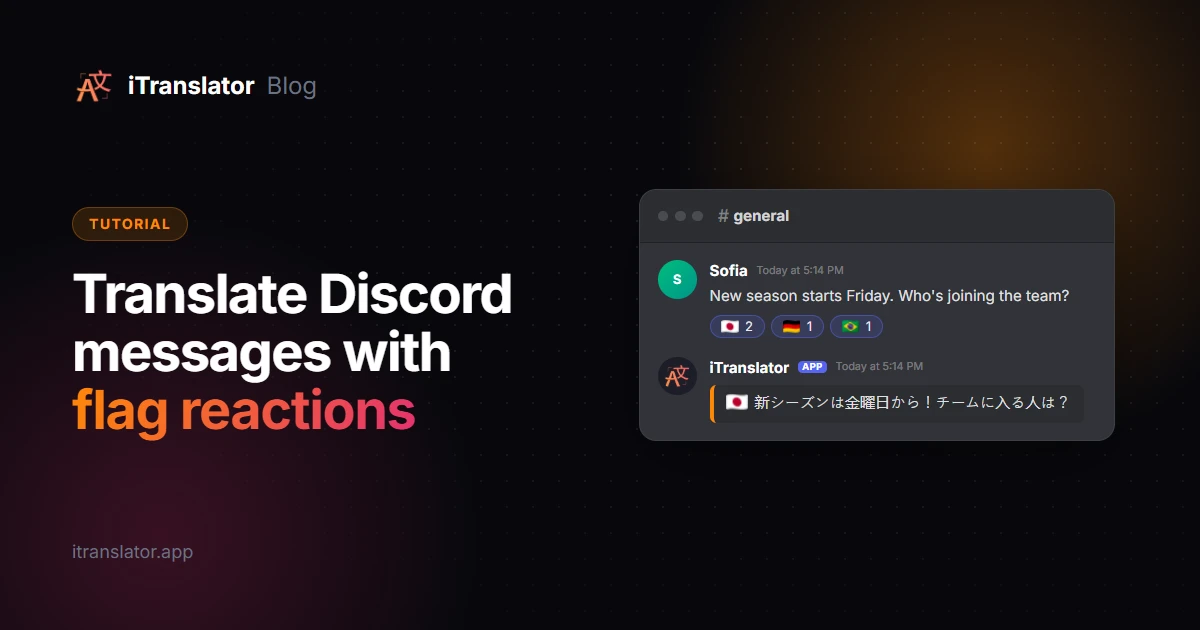
To translate a Discord message with a flag reaction, add iTranslator to your server and turn on Flag-Reaction in its dashboard (or run /flagreaction toggle). From then on, anyone can react to a message with a country flag, and iTranslator replies with the translation in that country's language: the German flag for German, the Japanese flag for Japanese, and so on.
It's the most natural way to translate on Discord. There's no command to remember, it works on desktop and mobile, and only the people who need a translation ask for one. Here's how to set it up and tune it for a busy server.
What is flag reaction translation?
Flag reactions turn Discord's emoji reactions into a translate button. Everyone on Discord already knows how to add a reaction, so there's nothing to learn: react with a flag, and iTranslator posts the translation as a reply.
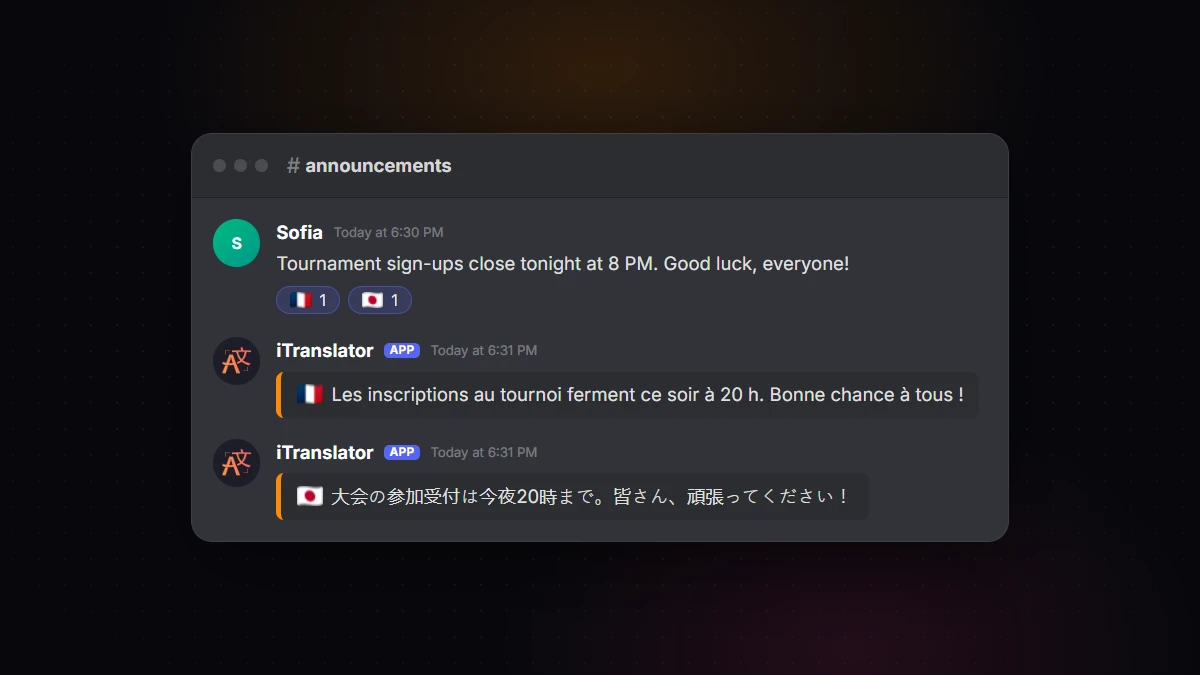
It works best on servers where most people share a language but some members don't. Nobody gets translations they didn't ask for, and anyone can get one in a second. Here's how it compares with the other automatic methods:
| Method | Who triggers it | Best for |
|---|---|---|
| Flag reactions | Any member, on demand | Mostly one-language servers with international members |
| Auto-translation | Automatic, every message in a channel | Channels where language groups chat together |
| Language roles | Automatic, for members with a role | Members who always write in another language |
How to enable flag reactions on your server
You need the Manage Server permission on the server.
- Add iTranslator to your server and keep the preselected permissions.
- Open the iTranslator dashboard, log in with Discord and pick your server.
- In the sidebar, under Translations, click Flag-Reaction.
- Turn on Enable Flag-Reaction. There's no Save button: each change is saved as soon as you make it.
- Test it: react to a message with a flag.
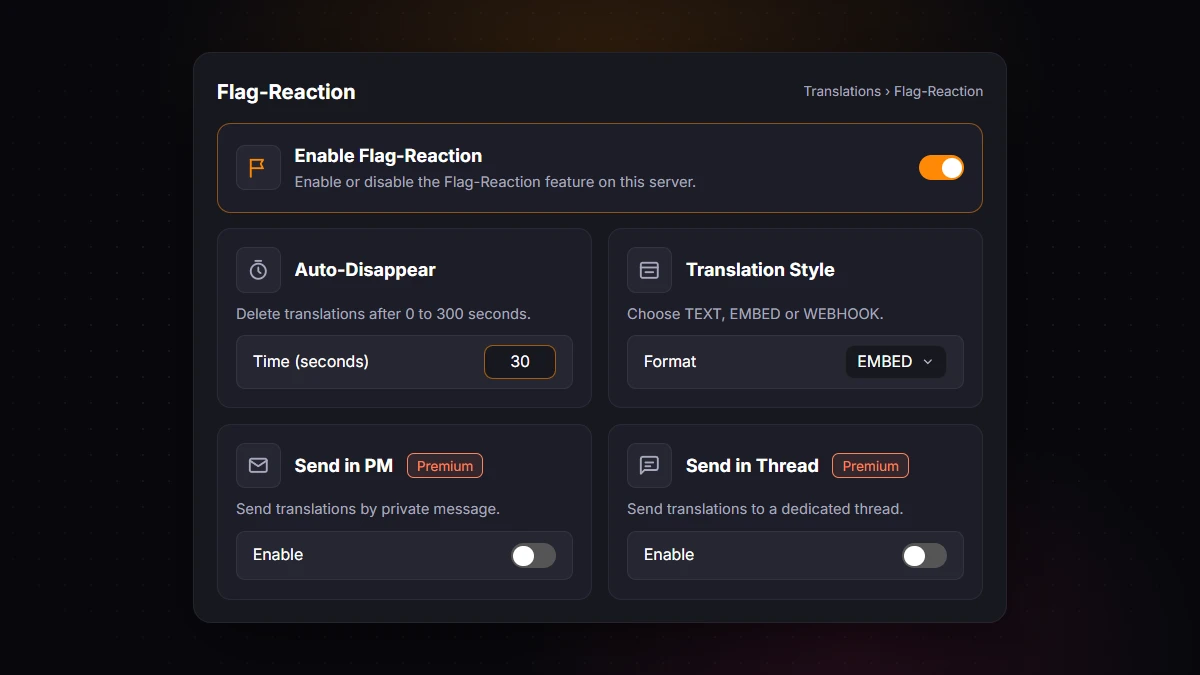
Prefer commands? Run /flagreaction toggle to turn the feature on or off.
Which flag gives which language?
Most flags translate into the language of their country. A few common examples:
| React with the flag of… | To get… |
|---|---|
| United Kingdom or United States | English |
| France | French |
| Germany | German |
| Spain or Mexico | Spanish |
| Portugal | Portuguese |
| Brazil | Brazilian Portuguese (Premium) |
| Italy | Italian |
| Japan | Japanese |
| South Korea | Korean |
When a country has several languages, iTranslator translates into each of them, so you get one reply per language: the Belgian flag gives three replies, in Dutch, French and German. That's handy in a bilingual community. If you only want one language, react with the flag of a country that speaks just that one.
The free plan covers 30 languages, and Premium unlocks all 109+. Brazilian Portuguese is one of the Premium languages; on the free plan, react with Portugal's flag for Portuguese.
To find a flag quickly, open the reaction picker and search for the country's name, or type flag_ followed by its two-letter code, like flag_jp.
Flag reaction settings
The Flag-Reaction page has four more settings:
| Setting | What it does | Plan |
|---|---|---|
| Auto-Disappear | Deletes the translation after 1 to 300 seconds (0 keeps it) and removes the flag reaction as soon as the translation is posted. Needs the Manage Messages permission | Free |
| Translation Style | Posts the translation as an Embed (default), plain Text, or a Webhook with the original author's name and avatar | Free |
| Send in PM | Sends the translation by private message to the member who reacted, instead of in the channel | Premium |
| Send in Thread | Posts translations in a thread instead of the main chat | Premium |
Which style should you choose? Embed is the default for a reason: the translation sits in a clearly separate card, so nobody mistakes it for a new message. Text is lighter and blends into the chat. Webhook makes the translation look like the original author posted it, which reads naturally but can confuse members who don't know the bot is there. When in doubt, keep Embed.
Send in PM works with the Text and Embed styles. It also removes the flag reaction and needs the Manage Messages permission. If both Send in PM and Send in Thread are on, translations go by private message.
Each setting also has a command: /flagreaction config auto-disappear, /flagreaction config style, /flagreaction config send-in-pm and /flagreaction config send-in-thread.
How to turn off flag translation in a channel
Some channels don't need translations: rules, media channels, bot-command channels. You can exclude any channel in two ways:
- Add
no-translateto the channel topic. Edit the channel, add the word to its topic, and iTranslator ignores flags there (except with Send in PM, which still sends translations by private message). - Remove iTranslator's Send Messages permission in that channel. The bot can't reply there, so it doesn't try (again, unless Send in PM is on).
The first option is easier to undo, and it leaves the bot's permissions untouched.
Best practices for big servers
Flag reactions are lightweight, but on an active server a few habits keep things tidy:
- Turn on Auto-Disappear. Translations pile up fast when a message gets five different flags. Around 30 to 60 seconds is usually enough to read a message. After that, the translation disappears (the flag reaction itself is removed as soon as the translation is posted), and the channel stays readable.
- Move translations out of the chat (Premium). Send in Thread posts translations in a dedicated thread instead of the main chat, and Send in PM delivers them by private message.
- Tell members the feature exists. Add a line to your rules or welcome channel, like "React with your country's flag to translate any message", written in each of your community's languages. Discord's own guide to international communities also recommends translating your rules into every language you support.
- Exclude noisy channels with
no-translate, so nobody translates memes and bot output by accident. - Watch your characters. Every translation uses characters from the server's allowance. The free plan includes 10,000 characters, which any member can reset for free every 12 hours by running
/checkvote, voting, and running/checkvoteagain. Premium removes the limit. - Combine methods. Keep flags for occasional needs, and auto-translate the one or two channels where language groups talk all day.
FAQ
Why doesn't anything happen when I react with a flag?
Check that Flag-Reaction is enabled, that nobody reacted with that flag before you (only the first reaction of each flag posts a translation in the channel), and that the channel isn't excluded (no-translate in its topic, or no Send Messages permission for the bot). Members on the server's Translate-Ban list can't trigger flag translations either. If the bot says Character limit exceeded, the server has used its free characters: run /checkvote, vote, then run it again to reset them (once every 12 hours).
Can I get flag translations privately?
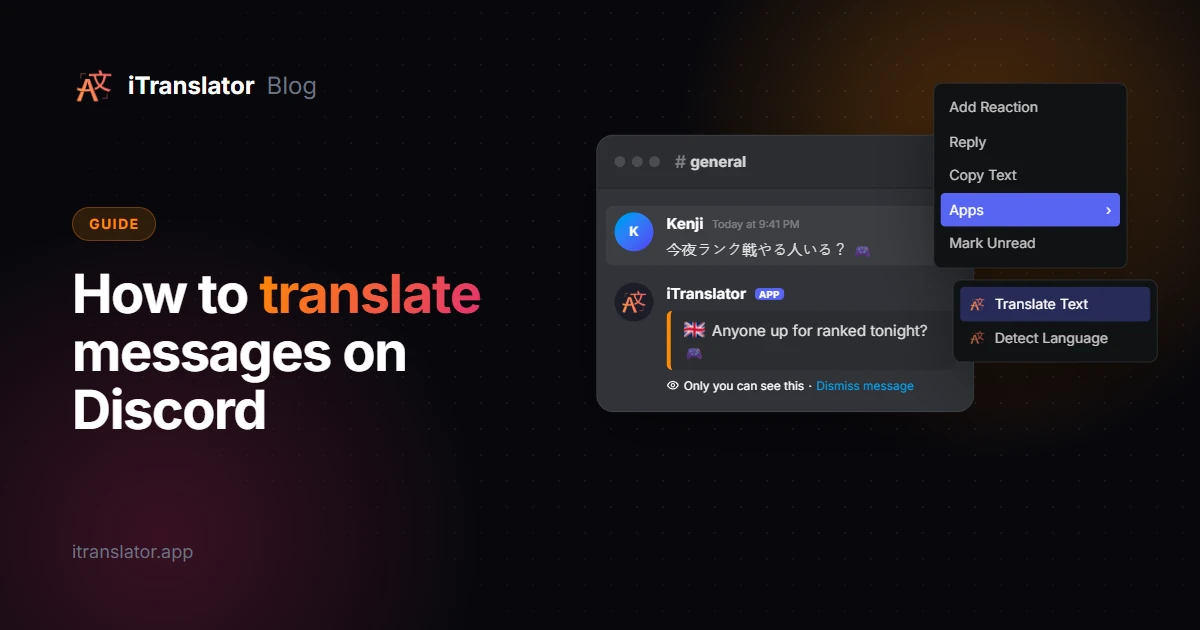
Yes, on Premium servers: turn on Send in PM and translations are delivered by private message. On any plan, you can also right-click a message and use Apps → Translate Text, as explained in our guide on how to translate messages on Discord.
Do flag reactions work on mobile?
Yes. Long-press the message, add a reaction and pick a flag. iTranslator replies exactly as it does on desktop.
Is flag reaction translation free?
Yes. Enabling it, Auto-Disappear and the translation style are free. Translations use the server's free characters, and Send in PM and Send in Thread require Premium.
Which languages can I translate into with flags?
Any language iTranslator supports that has a matching country flag. The free plan covers 30 languages, and Premium unlocks all 109+, including less widely spoken ones.
Can I react with several flags on the same message?
Yes. Each flag gets its own translation, so a message can be translated into as many languages as members need. Only the first reaction of each flag counts: a second Japanese flag on the same message doesn't post the Japanese translation again. (With Auto-Disappear, the flag is removed right away, so the next member can react again; with Send in PM, each member who reacts gets their own private translation.)
Break the language barrier on your server
iTranslator translates every message automatically in 109+ languages, so everyone can chat in their own language. Set up in 2 minutes.
Add to DiscordFree to start · No credit card required