Discord Language Roles: Let Members Pick Their Language
How to create Discord language roles, let members pick theirs with Onboarding, show each language its own channels and auto-translate messages by role.
On this page
Discord language roles are ordinary roles named after languages, like English, Español or Deutsch, that members pick for themselves. The easiest way to hand them out is Discord's built-in Onboarding: add a question such as "Which language do you speak?", and each answer gives the matching role. Once members have their role, you can use it to show them the right channels and even to translate their messages automatically.
This guide covers the whole setup, from creating the roles to showing each language its own channels and translating by role.
Why use language roles?
A language role is a small label with a lot of uses:
- Everyone knows who speaks what. The role shows on member profiles, so moderators and other members know which language to use with someone.
- You can send people to the right channels, either by adding them to their channel list or by unlocking a private category.
- You can reach one language at a time by mentioning the role in an announcement written in that language.
- Bots can act on it, for example by translating everything members with a given role write.
How to create language roles
- Open Server Settings → Roles and click Create Role.
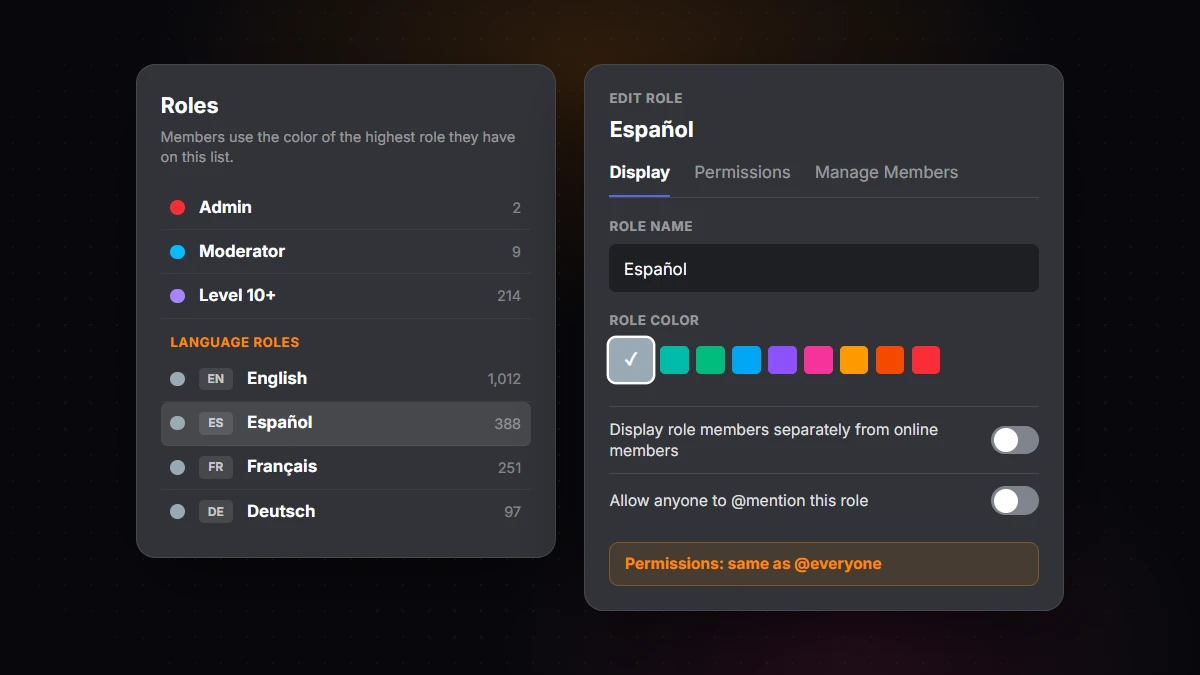
- Name the role in its own language: Español, not Spanish (more on naming below).
- Pick a color, or keep the default (no color).
- Leave the permissions as they are. New roles start from the @everyone permissions, and a language role should stay a simple label. Members will give it to themselves through Onboarding, so any permission you add, anyone could grant themselves by picking a language.
- Click Save Changes, then repeat for each language.
You need the Manage Roles permission, and you can only create and edit roles below your own highest role.
How to name language roles
Name each role after the language, written in that language. Members recognize their own language instantly, even in a list they can't otherwise read.
| Instead of | Use | Why |
|---|---|---|
| A country flag on its own | Español | Spanish is an official language in about 20 countries. A flag picks one of them |
| Spanish | Español | Speakers spot their own language's name at a glance |
| ES | ES · Español | Codes help sorting and searching, but not everyone knows them |
| Spanish speakers | Español | Short names fit Onboarding answers and profiles better |
Flags cause more trouble than they seem to. English speakers come from dozens of countries, Brazilians may not want the Portuguese flag, and some flags carry political weight. Use a flag as decoration next to the name if you like, never as the only label.
Colors, position and display settings
A member's name color comes from their highest role that has a color, and the role icon next to their name comes from their highest role that has an icon (a Level 2 Server Boost perk). That gives you a choice:
- No color, placed low in the list (recommended): language roles never override your staff, rank or booster colors.
- A color per language, placed higher: everyone's language is visible at a glance, but rank colors disappear from chat.
Two display settings to check on each language role:
- Display role members separately from online members: leave it off, unless you really want your member list grouped by language.
- Allow anyone to @mention this role: leave it off to avoid spam. Admins and members with the "Mention @everyone, @here, and All Roles" permission can still ping the role for announcements.
How to let members pick their language role
Discord's Community Onboarding asks new members a few questions when they join, and each answer can assign roles and add channels to their channel list. It's built in, free, and works on every device.
Before you start:
- Onboarding is available to Community servers. If yours isn't one, go to Server Settings → Enable Community first.
- You need Manage Server and Manage Roles, or Administrator.
- You have to set it up from a computer, not the mobile app.
Then set up the question:
- Open Server Settings → Onboarding.
- Pick your Default Channels, the ones every new member sees. Discord requires at least 7, and at least 5 of them must let @everyone view and send messages.
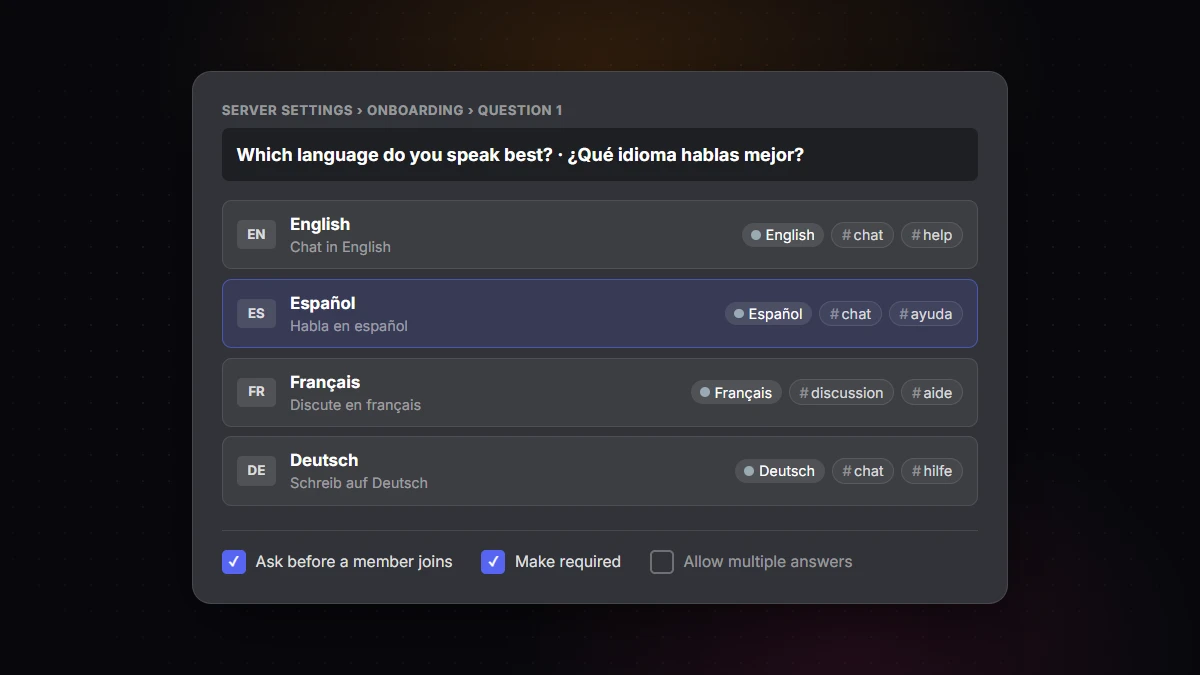
- Add a question, for example "Which language do you speak best?".
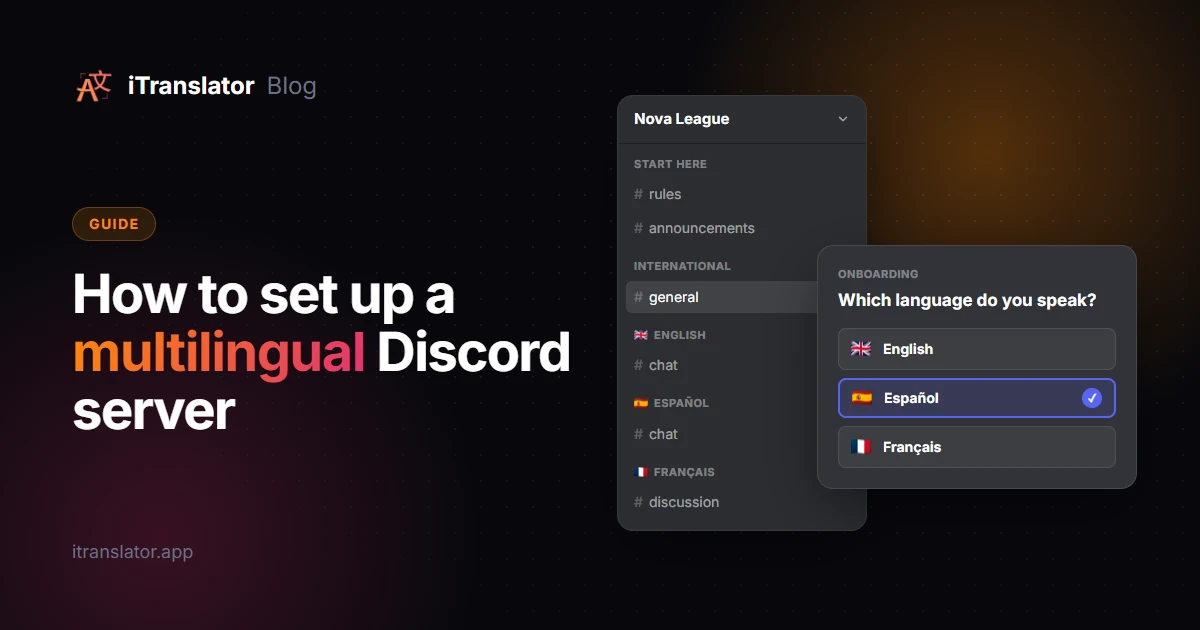
- Add one answer per language. Give it the language's own name as the title, an optional emoji and a short description, then assign the language role, plus that language's channels if you have any.
- Set the options: ask it before members join, make it required, and leave multiple answers off.
- Use Preview to go through it as a new member, then enable Onboarding.
Write the question for people who can't read it yet
Onboarding shows your question exactly as you typed it, to everyone, including people who don't read your main language:
- Write the question in your main languages: "Which language do you speak best? · ¿Qué idioma hablas mejor?"
- Keep answers to the language name, with a short description in that language.
- Keep the list short. Discord's own Onboarding examples suggest around 6 answers as a good maximum. If you have more languages than that, add an "Other languages" answer that sends people to your international channel.
Keep the question single-choice: one main language per member keeps channel lists tidy and translation predictable. For bilingual members, add a second, optional question ("Any other languages you speak?") that only adds channels.
Don't forget existing members
Onboarding only runs when someone joins, or rejoins after leaving. Members who were already there can answer your questions from Channels & Roles at the top of the channel list, where anyone can also change their answer later. Post an announcement pointing there when you launch your language roles.
No Community server? A reaction-role or button-role bot can hand out the roles instead. Discord's internationalization guide suggests the same idea: let users choose their language, and let them change it later.
How to show each language its own channels
Option 1: open channels. Each Onboarding answer adds that language's channels to the member's list. Everything else stays accessible from Channels & Roles → Browse Channels. Best for most communities: members see their section first, and language learners can still visit the others.
Option 2: private categories. Each language category is only visible to its role. Members without access simply don't see it in their channel list.
- Right-click the language category and choose Edit Category, then Permissions.
- Turn on Private Category. Discord removes the View Channel permission from @everyone.
- Click Add members or roles and add the language role, plus your moderator role.
- Keep the channels inside synced with the category, so new channels get the same access automatically.
- If a bot translates these channels, add the bot's role too, or it won't see the messages.
Either way, keep at least one international channel open to everyone, as Discord's guide recommends, so members can still talk to the whole community. Our step-by-step guide to setting up a multilingual Discord server covers the full channel layout.
How to translate messages automatically by language role
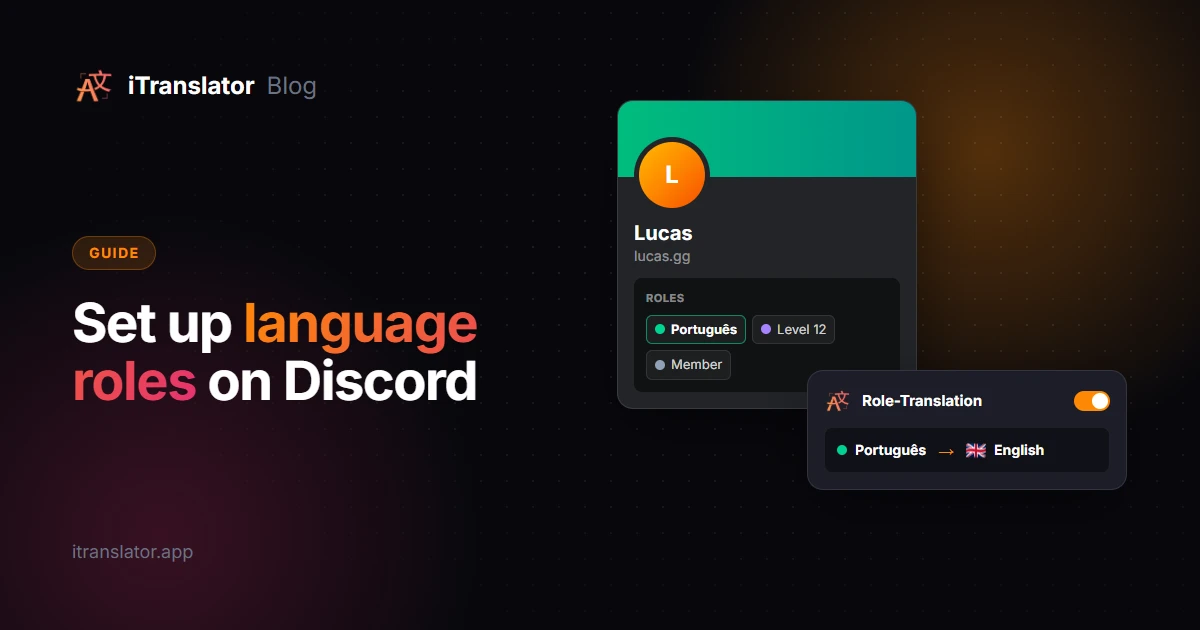
As of 2026, Discord has no built-in translation, but iTranslator can translate members based on their role with its Role-Translation feature: link a role to a target language, and everything members with that role write is translated automatically, wherever they post. For example, link the Português role to English, and every message from your Brazilian members gets an English translation for the rest of the server, posted right after it in the same channel. The source language is detected automatically.
- Add iTranslator to your server and keep the pre-selected permissions.
- Open the dashboard, log in with Discord and pick your server.
- Go to Role-Translation, choose the role and the target language, and save.
You can also do it from Discord with /translaterole create. The free plan includes 3 role configurations with one target language each, which covers three language roles. Premium raises the limit and lets one role be translated into several languages.
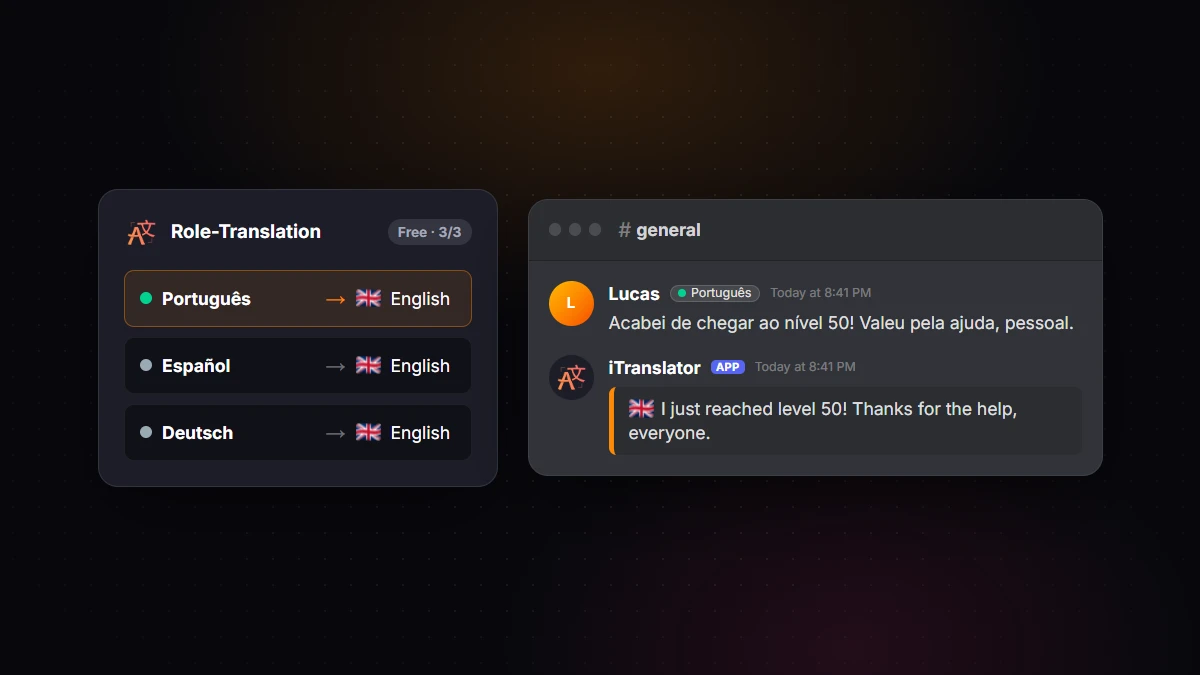
It works especially well with Onboarding: a new member picks "Português", gets the role, and their very first message is already translated. Nobody configures anything per person.
Three details to get right:
- Skip the role's own section. Portuguese speakers chatting in the Portuguese category don't need English translations. Add
no-roletranslateto those channels' topics. - One translation per configured role. A member who has two configured roles gets two translations of each message. That's another reason to keep language roles single-choice.
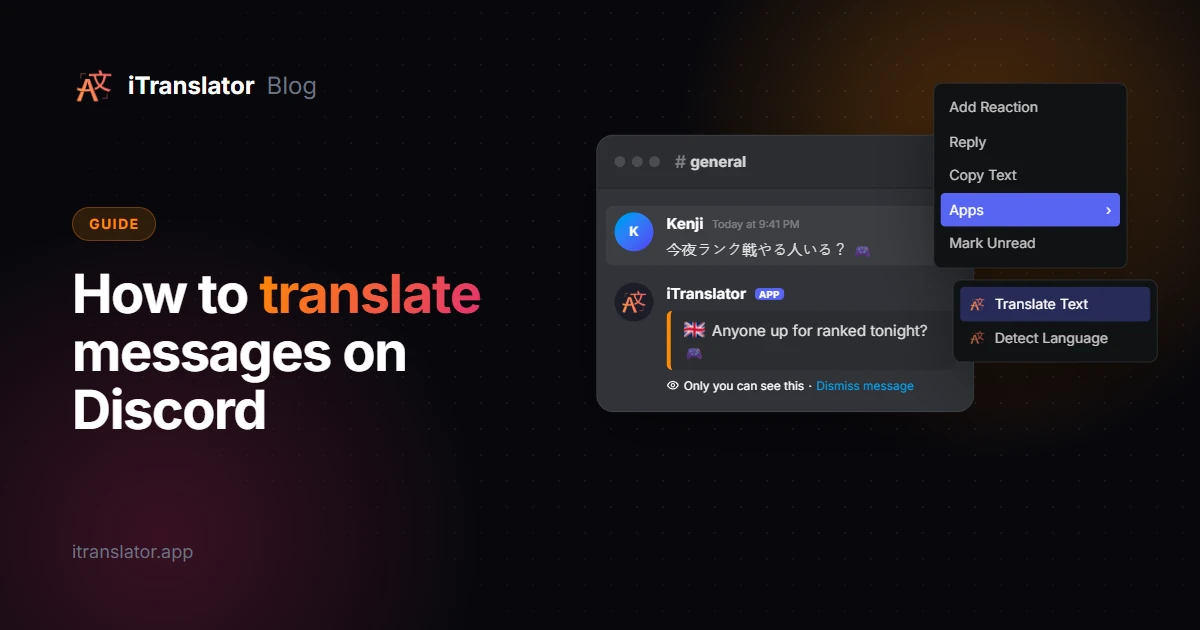
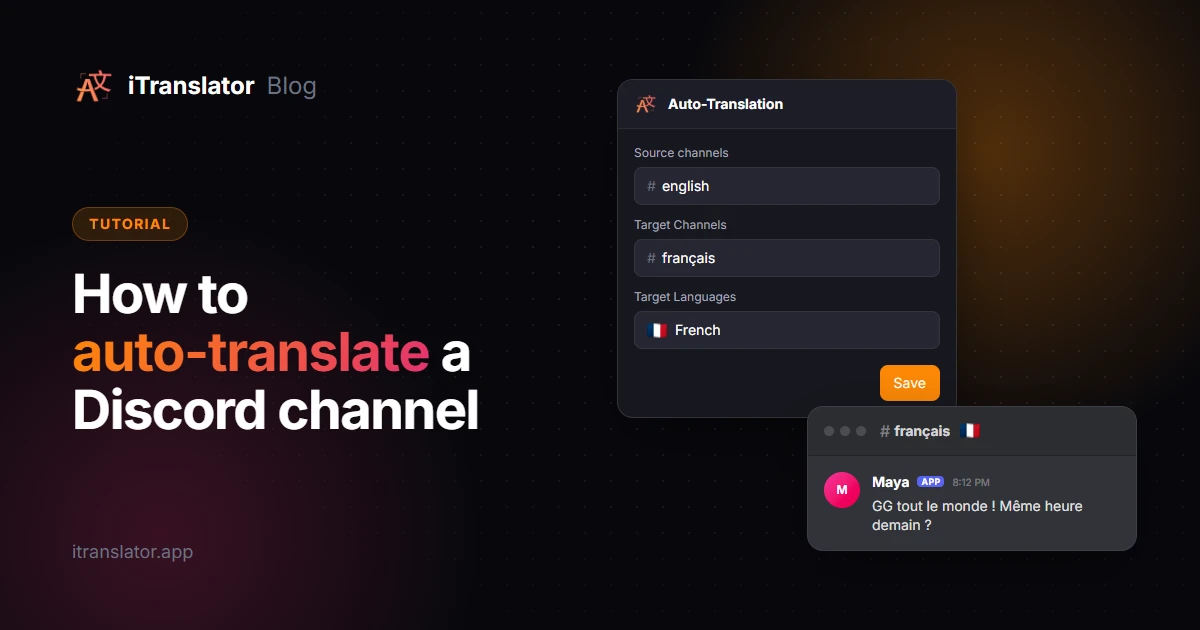
- Help them read, too. Role-Translation translates what members with the role write. To help them read the English conversation, link the channels with auto-translation (see our guide to auto-translating a Discord channel), or let them use flag reactions and Apps → Translate Text.
FAQ
How do I add language roles on Discord?
Go to Server Settings → Roles → Create Role, name the role after a language in that language (Español, Français, Deutsch), leave its permissions as they are (the same as @everyone) and save. Then let members assign it to themselves with an Onboarding question.
How do members choose their own roles on Discord?
On Community servers, Discord's Onboarding lets you ask questions whose answers assign roles and channels. New members answer when they join, and everyone can change their answers later in Channels & Roles at the top of the channel list.
Can I make channels visible only to one language role?
Yes. Edit the language category, open Permissions, turn on Private Category and add the language role. Members without the role won't see the category at all, so keep at least one international channel open to everyone.
Can a Discord bot translate messages based on a member's role?
Yes. iTranslator's Role-Translation translates everything members with a given role write into the language you choose, wherever they post. The free plan includes 3 role configurations, and Premium raises the limit.
Can members change their language role later?
Yes. Members can change their Onboarding answers anytime from Channels & Roles at the top of the channel list, which swaps their roles and channels. Members who leave and rejoin go through Onboarding again.
Break the language barrier on your server
iTranslator translates every message automatically in 109+ languages, so everyone can chat in their own language. Set up in 2 minutes.
Add to DiscordFree to start · No credit card required