How to Translate Texts on Discord (2026 Guide)
Discord still has no built-in translator. Here is every way to translate Discord messages in 2026: right-click apps, /translate, flag reactions and auto-translation.
On this page
- Does Discord have a built-in translator?
- Every way to translate Discord messages at a glance
- Method 1: Translate a single message with a right-click
- Method 2: Use the /translate command
- Method 3: Let members translate with flag reactions
- Method 4: Auto-translate entire channels
- Method 5: Translate by role
- How to translate Discord DMs and servers where you're not an admin
- What about browser extensions and BetterDiscord plugins?
- How to get better translations
- FAQ
Discord still doesn't have a built-in translate button in 2026. To translate a message, you need a translation app like iTranslator: right-click the message, open Apps, and pick Translate Text. If your whole server needs translating, a bot can also translate every message in a channel automatically, so nobody has to do anything.
This guide covers every method that works today, on desktop and mobile, from translating a single message to running a fully multilingual server. It also covers the options you should avoid.
Does Discord have a built-in translator?
No. As of 2026, Discord has no native translation for servers or direct messages. There is no "Translate" option in the message menu, and no per-channel auto-translate setting. Users have asked for one for years on Discord's feedback forum, but it hasn't shipped.
That's a real gap for a platform whose website gets most of its traffic from outside the US. According to Similarweb, about 70% of visits to discord.com come from other countries. International gaming, anime and crypto communities hit the language barrier every day.
Until Discord builds something, you have four kinds of options:
- A translation app or bot, which works inside Discord for everyone, on every device.
- A browser extension, which only works if you use Discord in a web browser, and only for you.
- Copy-pasting into Google Translate or DeepL, which works for occasional use but gets tedious fast.
- Client mods like BetterDiscord plugins, which you should avoid (more on that below).
Every way to translate Discord messages at a glance
| Method | Best for | Who sets it up | Mobile |
|---|---|---|---|
| Right-click → Apps → Translate Text | Understanding one message | You (no admin needed) | Yes (long-press) |
/translate command |
Translating what you're about to send | You | Yes |
| Flag reactions | On-demand translations anyone can trigger | A server admin, once | Yes |
| Auto-translation | Channels where everyone chats together | A server admin | Yes |
| Role-based translation | Members who always write in another language | A server admin | Yes |
| Browser extension | Reading Discord in a web browser | You | No |
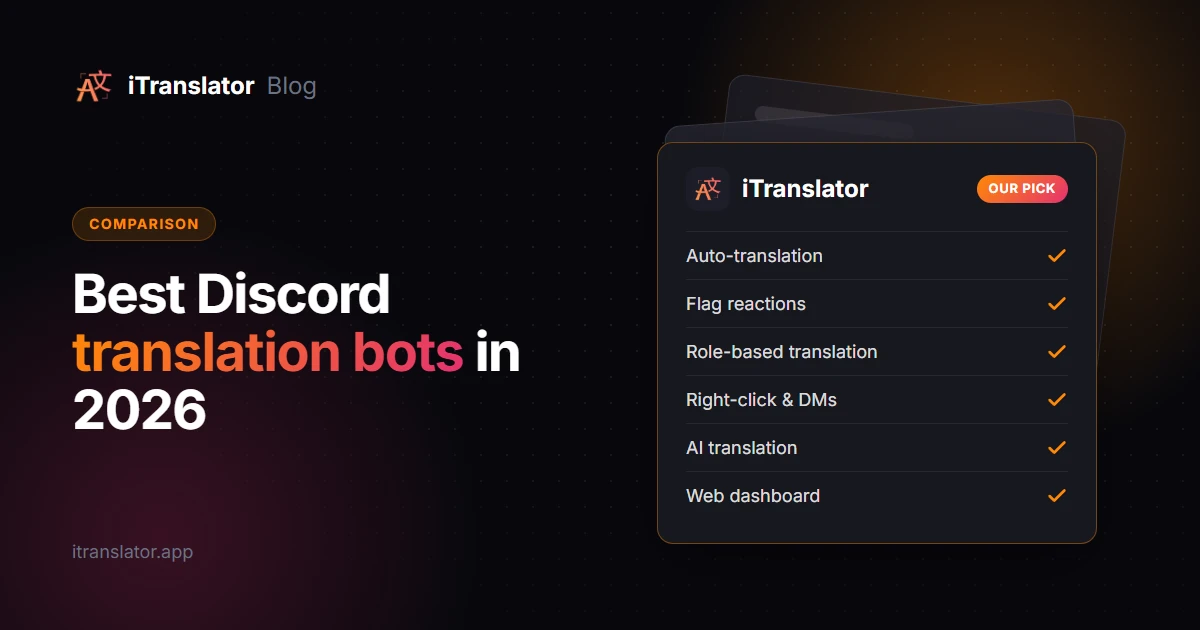
The first five all work with the same app. Let's go through them one by one.
Method 1: Translate a single message with a right-click
This is the fastest way to understand a message you can't read.
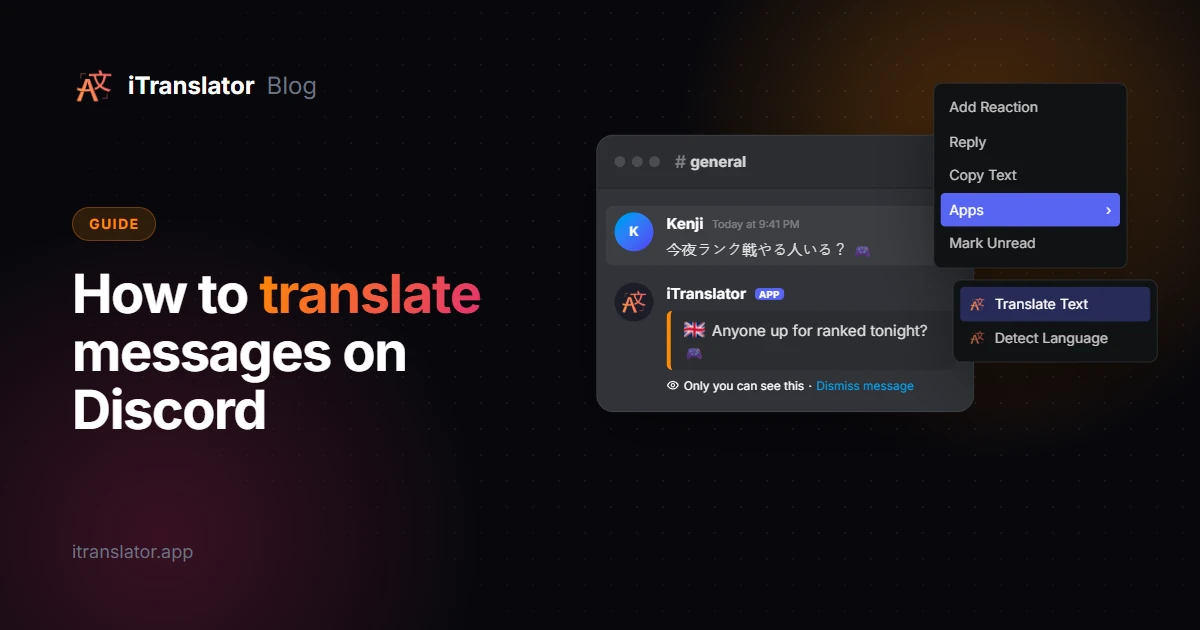
- Hover over the message and right-click it. On mobile, long-press the message instead.
- Open the Apps submenu.
- Click Translate Text. iTranslator translates it into the language of your Discord app, in a reply only you can see.
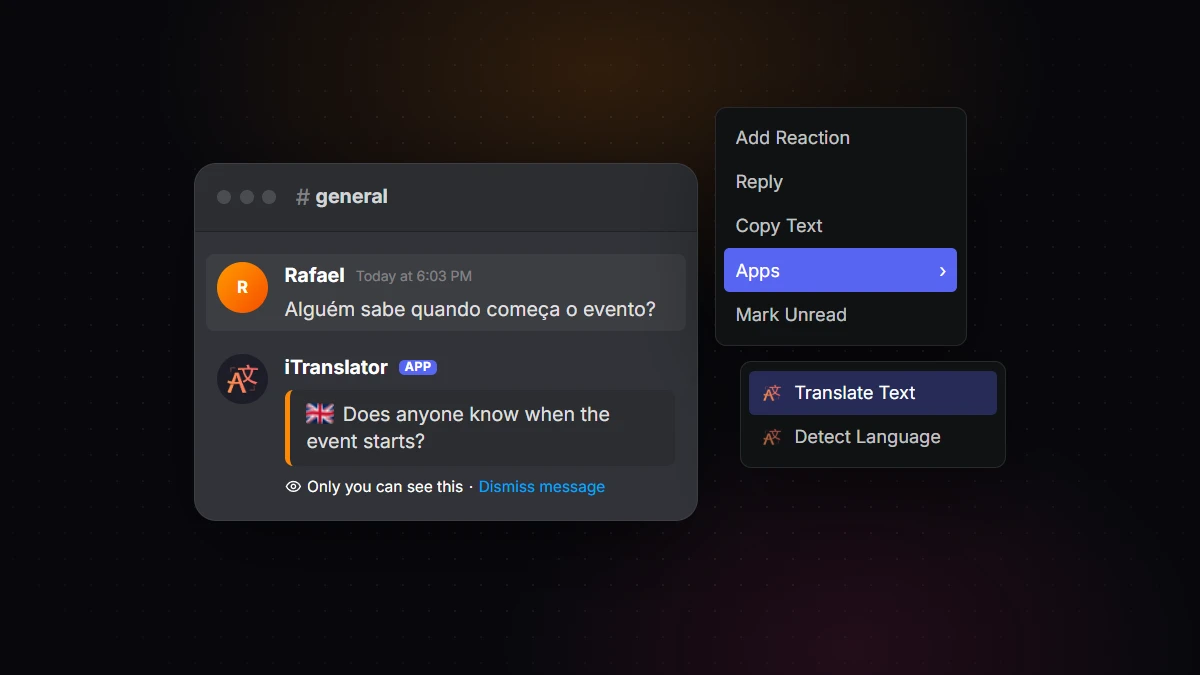
The same submenu has Detect Language, which is handy when you don't even know what language you're looking at.
By default, the translation uses your Discord client's language. If your Discord is in English but you'd rather read translations in Spanish, run /set-context-language once and pick your language.
Don't have the bot on this server? You can still use this method. Add iTranslator to your own account as a user-installable app, and Translate Text will show up in every server, DM and group chat, even where no admin has installed it. We explain how in the section on DMs below.
Method 2: Use the /translate command
When you want to translate something before you send it, type /translate in any channel, enter your text and choose the target language. The translation is posted in the channel, so everyone can read it.
For example, /translate text: Good morning! Ready for the match? target-language: Spanish returns "¡Buenos días! ¿Listos para la partida?"
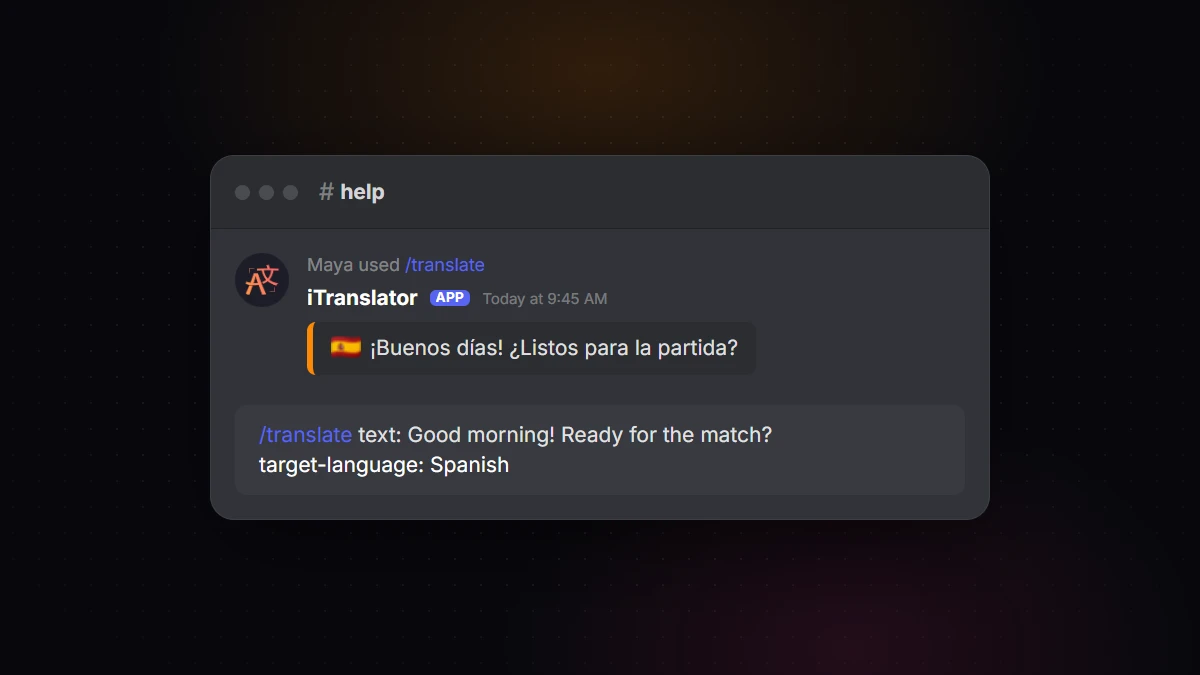
The source language is optional. iTranslator detects it automatically. There's also a /detect command that tells you which language a text is written in.
Method 3: Let members translate with flag reactions
Flag reactions are the most "Discord-native" way to translate. React to any message with a country flag, and iTranslator replies with the translation in that country's language. React with the German flag to get German, the Japanese flag to get Japanese, and so on.
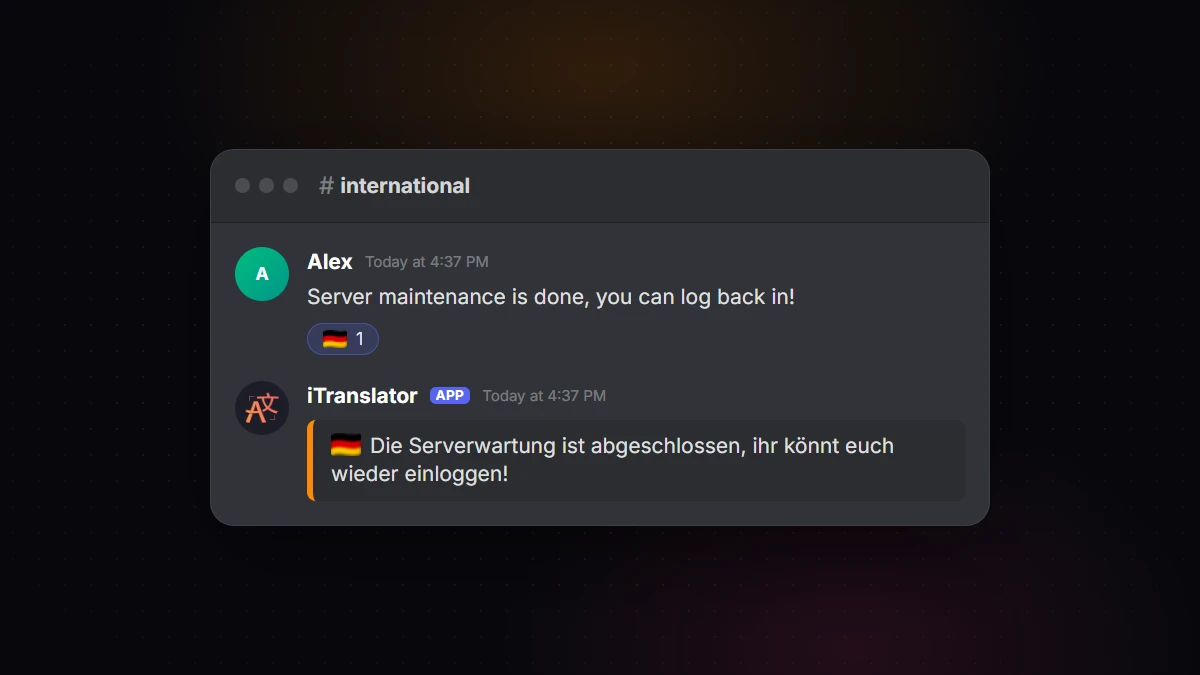
It's perfect for mostly-English servers with an international minority: nobody gets spammed with translations they don't need, but anyone can get one in a second.
A server admin enables it once from the iTranslator dashboard (Flag-Reaction → enable) or with /flagreaction toggle. Useful options:
- Auto-disappear: delete the translation after a few seconds to keep the channel clean.
- Style: plain text, embed, or webhook.
- Send in DM or in a thread (Premium): deliver the translation privately or in a thread instead of the channel.
To disable flags in a specific channel, add no-translate to that channel's topic.
Method 4: Auto-translate entire channels
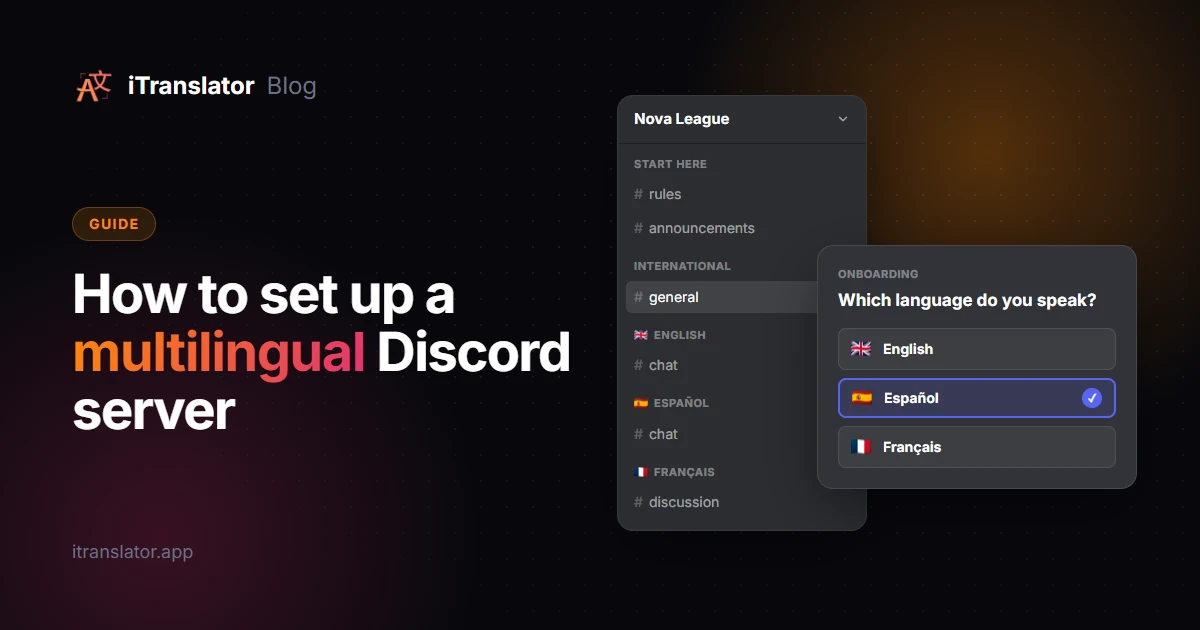
If your members speak different languages and talk to each other all the time, reacting message by message doesn't scale. That's what auto-translation is for: every message posted in a channel is translated and posted automatically.
There are two popular setups:
- One channel per language. Messages in
#englishare posted in French in#français, and vice versa. Everyone reads and writes in their own language, and the conversation stays in sync. - One shared channel. Translations are posted right below the original message, in the same channel. This works well for small groups and announcement channels.
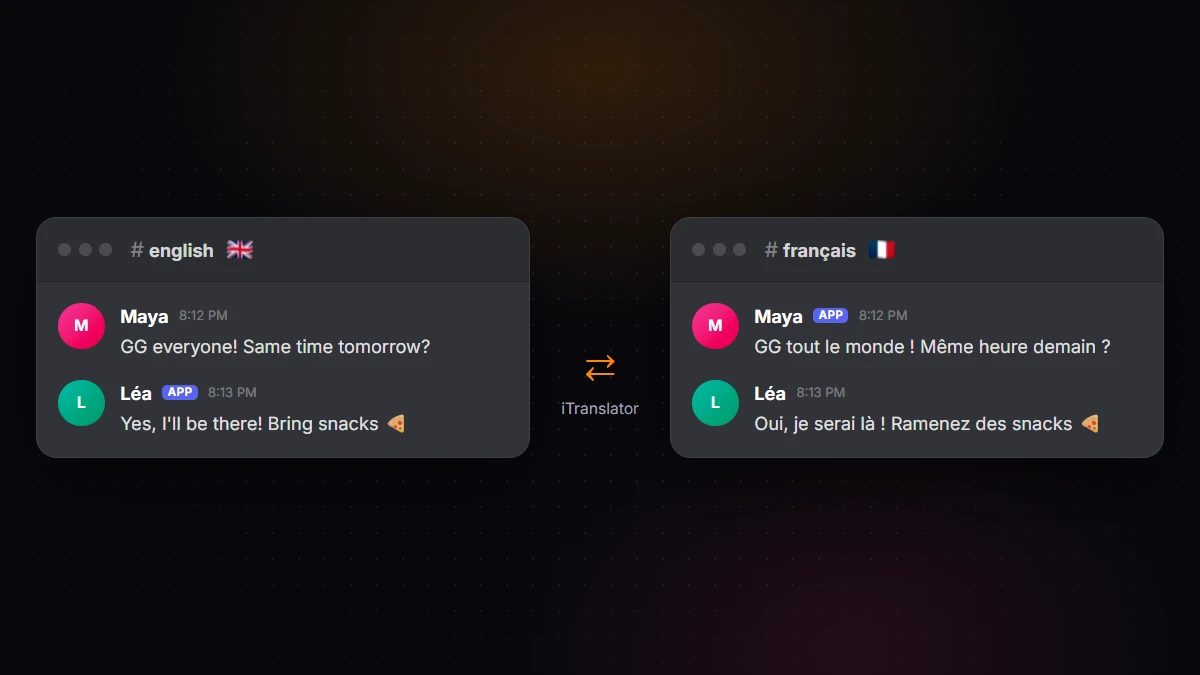
To set it up:
- Add iTranslator to your server and keep the pre-selected permissions.
- Open the dashboard, log in with Discord and pick your server.
- Go to Auto-Translation, choose the source channel, the target channel and the target language, then save.
That's it: messages are translated from that moment on. The free plan includes up to 30 auto-translation configurations. With the Webhook message style (the default), translations appear with the original author's name and avatar, so the translated channel reads like a normal conversation.
Method 5: Translate by role
Role-based translation is a middle ground. Instead of translating a whole channel, iTranslator translates the messages of members who have a specific role.
For example, give a Português role to your Brazilian members. Everything they write is automatically translated into English for the rest of the server, wherever they post. It's great for large servers that don't want to duplicate every channel.
Set it up from the dashboard's Role-Translation page, or with /translaterole create. The free plan includes three role configurations.
How to translate Discord DMs and servers where you're not an admin
Direct messages are where people get stuck, because you can't add a bot to a DM. The answer is a user-installable app: instead of installing iTranslator on a server, you install it on your own Discord account.
- Open the iTranslator invite page.
- Choose Try it now (use this app anywhere!) (Add to My Apps on some versions of Discord).
- Click Authorize.
From then on, Translate Text, Detect Language and /translate are available in your DMs, your group chats and any server, even if the server's admins never installed the bot. If a server has turned off external apps, the commands still work, but their replies are only visible to you. To auto-translate channels or use flag reactions, add the bot to the server.
What about browser extensions and BetterDiscord plugins?
Browser extensions like Google Translate or Immersive Translate can translate the page when you use Discord in a web browser. They only work for you, not in the Discord desktop app, and in practice only on desktop, since Discord's mobile apps don't run extensions. They can also break whenever Discord updates its interface. They're fine for reading occasionally, but they won't help the people you're talking to.
BetterDiscord and other client mods often come with translation plugins. Don't use them. Modifying the Discord client breaks Discord's Terms of Service, and accounts can be banned for it. It's not worth risking your account when official apps do the same job.
How to get better translations
Machine translation is good, but chat is hard: slang, abbreviations, game terms and half-finished sentences. A few tips make a big difference:
- Set the source language when you know it, instead of relying on auto-detection. Short messages are the hardest to detect.
- Protect words that shouldn't be translated. On Premium, you can keep a game name, character name or inside joke untranslated by wrapping the word in
<angle brackets>. Text-Replacement, available on every plan, rewrites abbreviations the engine doesn't know before translating them. - Use a better engine for important channels. iTranslator's Premium plan uses a more accurate translation engine and unlocks all 109+ languages. The Pro AI plan translates with a large language model, which usually handles slang, tone and context better than classic machine translation.
- Group short messages. People often type a sentence in three quick messages. The Pro AI plan's Conversation Mode waits a few seconds (you choose the delay) and translates them together, with the full context.
FAQ
Does Discord have a translate button?
No. As of 2026, Discord doesn't include a translate button or any automatic translation. You need to add a translation app such as iTranslator, which adds Translate Text to the right-click menu under Apps.
How do I translate a Discord message on mobile?
Long-press the message, tap Apps, then Translate Text. This works on iPhone and Android as long as iTranslator is installed on the server or on your account as a user app.
Can Discord translate messages automatically?
Not on its own. With a bot like iTranslator, a server admin can set up auto-translation so that every message in a channel is translated into one or more languages automatically, either in the same channel or in a separate channel per language.
Is there a free Discord translator bot?
Yes. iTranslator is free to use, with 10,000 characters per server (and 2,000 per user for the personal app) that you can reset for free every 12 hours by voting for the bot, then running /checkvote. Paid plans remove the limit and add better translation engines, but they're optional.
Can I translate Discord DMs?
Yes. Install iTranslator as a user app from the invite page (choose Try it now (use this app anywhere!), or Add to My Apps on some versions of Discord), and you can right-click any message in a DM and choose Translate Text, or use /translate in the conversation.
Can Discord translate voice chat?
Discord doesn't translate voice. iTranslator's Pro AI plan can transcribe voice channels into text in a thread and read text aloud with text-to-speech.
Break the language barrier on your server
iTranslator translates every message automatically in 109+ languages, so everyone can chat in their own language. Set up in 2 minutes.
Add to DiscordFree to start · No credit card required